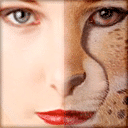
FantaMorph creates an animation in which one image gradually changes into another. It does not discover the correspondence on every subject by itself. The editor pairs points on the source images, builds a mesh from those points, and calculates each intermediate frame. A project can hold one transition or a chain of sequences, so a face can change through several people rather than stop after one pair.
Dots control shape
Each key dot identifies the same landmark in both source images: the corner of an eye, the edge of a mouth, or a point on an object’s outline. FantaMorph moves the mesh between those paired locations. A dot placed on only one image has no effect until it gains a partner on the other source.
Auto Add Corresponding Dot creates that partner automatically, but it cannot know the correct landmark. The user still needs to drag the second dot into place. A mismatched dot can pull an eyebrow toward a cheek or bend an edge across the background. Fewer accurate pairs usually work better than many hurried points.
Faces need alignment
Face Locator detects eyes, nose, mouth, and other facial regions, then places an initial dot set. The two portraits still need similar crop, angle, and scale. A profile photograph and a straight portrait contain different visible landmarks, so automatic placement cannot invent the hidden side of the face.
Extra dots around hair, neck, or clothing must follow the same order and meaning across each source. The preview slider is the quickest check. Moving it through the middle frames exposes crossed mesh lines, double edges, and facial details that collapse before a long movie is rendered.
More than two
A multi-sequence FantaMorph project links several source images. Each sequence has its own timing and correspondence work. Auto Play All runs them in order, while the sequence view lets the user inspect one transition. A smooth first pair does not guarantee the next pair, because every new source introduces another mesh.
Camera movement, captions, filters, foregrounds, masks, and sound can join the project according to the installed edition. These elements change the final composition but do not repair bad source alignment. The morph itself should be stable before effects make the preview harder to judge.
Choosing an export
FantaMorph can write individual image frames, an AVI movie, an animated GIF, a screen saver, a web package, or a standalone executable. A current frame can also leave as a still image. Image sequences preserve every frame for later video editing, while a single movie is easier to play directly.
The format changes the result. Animated GIF uses a limited color palette, so gradients and skin tones can band. AVI compression depends on a codec already installed on the computer; an uncompressed file avoids that dependency but can become very large. Alpha output needs a format that stores transparency and the corresponding edition controls.
Rendering limits
Frame rate, duration, resolution, dot count, and effects all add rendering work. During export, most controls remain unavailable. Cancelling the run creates no final result, so a lengthy render cannot resume from its last completed frame unless the chosen image-sequence workflow preserves those files separately.
Hardware acceleration can speed the preview or export, yet it also ties the maximum image size to the display adapter. The official troubleshooting route for display errors is to disable acceleration and restart FantaMorph. That software path can also permit a much larger still-image export, though it shifts more work to the processor.
Keep the project
The exported animation does not preserve editable dots, meshes, timing, or source links. Those remain in the project. Source images should stay at stable paths, and the project should be saved before export. Replacing a source with another file of the same name can change the next render even when an earlier movie still plays correctly.